> ## Documentation Index
> Fetch the complete documentation index at: https://www.greptile.com/docs/llms.txt
> Use this file to discover all available pages before exploring further.
# IDE Setup
> Step-by-step setup for Greptile MCP server in Cursor, Claude Code, VS Code, and Codex CLI. Access code review tools and custom context directly from your IDE.
Configure the Greptile MCP server in your IDE to access code review tools and custom context.
**Prerequisite:** Get your API key from [app.greptile.com/settings/organization/api](https://app.greptile.com/settings/organization/api) (Settings > Organization > API Keys)
## Setup by IDE
Click the 'Settings' icon or press `Ctrl + Shift + J` (Windows/Linux) or `Cmd + Shift + J` (macOS).
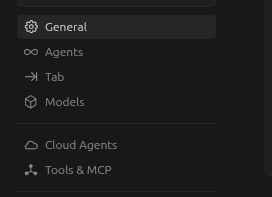
Click **Tools & MCP** in the left sidebar.
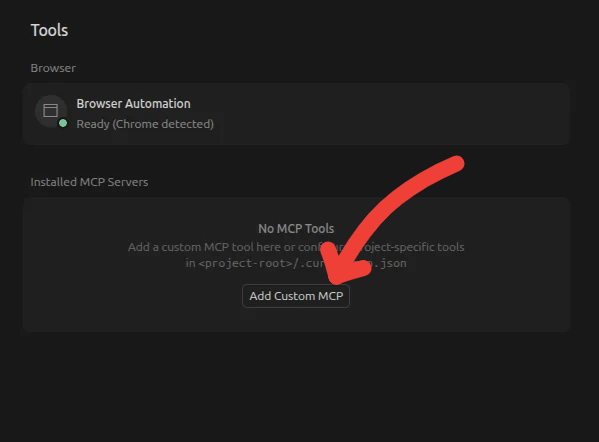
 Click **Add Custom MCP**.
 Add the following configuration:
```json theme={}
{
"mcpServers": {
"greptile": {
"type": "http",
"url": "https://api.greptile.com/mcp",
"headers": {
"Authorization": "Bearer YOUR_GREPTILE_API_KEY"
}
}
}
}
```
Replace `YOUR_GREPTILE_API_KEY` with your actual API key. Save the file.
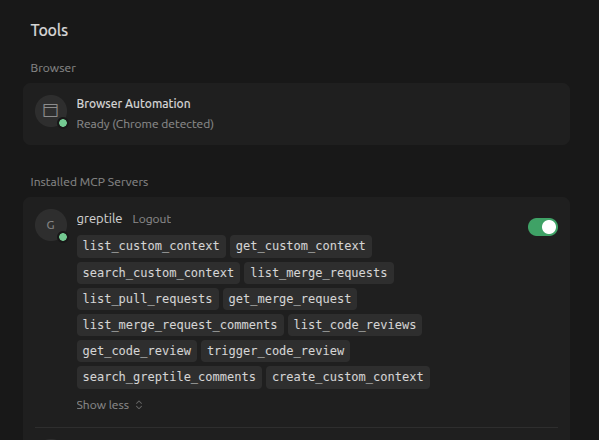
Return to **Tools & MCP**. You should see Greptile with all 11 tools enabled.
Add the following configuration:
```json theme={}
{
"mcpServers": {
"greptile": {
"type": "http",
"url": "https://api.greptile.com/mcp",
"headers": {
"Authorization": "Bearer YOUR_GREPTILE_API_KEY"
}
}
}
}
```
Replace `YOUR_GREPTILE_API_KEY` with your actual API key. Save the file.
Return to **Tools & MCP**. You should see Greptile with all 11 tools enabled.
 Run the following command in your terminal:
```bash theme={}
claude mcp add --transport http greptile https://api.greptile.com/mcp \
--header "Authorization: Bearer YOUR_GREPTILE_API_KEY"
```
Replace `YOUR_GREPTILE_API_KEY` with your actual API key.
Check that the server was added:
```bash theme={}
claude mcp list
```
You should see:
```
greptile: https://api.greptile.com/mcp (HTTP) - ✓ Connected
```
Open Claude Code. The Greptile MCP tools are now available automatically.
### Project-Level Configuration
For team-shared configuration, create a `.mcp.json` file in your project root:
```json theme={}
{
"servers": {
"greptile": {
"transport": "http",
"url": "https://api.greptile.com/mcp",
"headers": {
"Authorization": "Bearer ${GREPTILE_API_KEY}"
}
}
}
}
```
Then set the environment variable:
```bash theme={}
export GREPTILE_API_KEY=your-api-key-here
```
Press `Ctrl + Shift + P` (Windows/Linux) or `Cmd + Shift + P` (macOS).
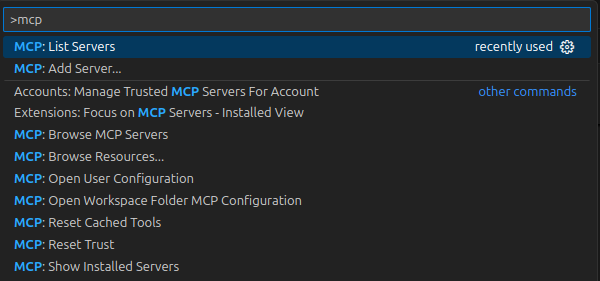
Type `MCP` and select **MCP: Add Server**.
Run the following command in your terminal:
```bash theme={}
claude mcp add --transport http greptile https://api.greptile.com/mcp \
--header "Authorization: Bearer YOUR_GREPTILE_API_KEY"
```
Replace `YOUR_GREPTILE_API_KEY` with your actual API key.
Check that the server was added:
```bash theme={}
claude mcp list
```
You should see:
```
greptile: https://api.greptile.com/mcp (HTTP) - ✓ Connected
```
Open Claude Code. The Greptile MCP tools are now available automatically.
### Project-Level Configuration
For team-shared configuration, create a `.mcp.json` file in your project root:
```json theme={}
{
"servers": {
"greptile": {
"transport": "http",
"url": "https://api.greptile.com/mcp",
"headers": {
"Authorization": "Bearer ${GREPTILE_API_KEY}"
}
}
}
}
```
Then set the environment variable:
```bash theme={}
export GREPTILE_API_KEY=your-api-key-here
```
Press `Ctrl + Shift + P` (Windows/Linux) or `Cmd + Shift + P` (macOS).
Type `MCP` and select **MCP: Add Server**.
 Choose **HTTP (HTTP or Server-Sent-Events)**.
 Enter: `https://api.greptile.com/mcp`
Choose **Global** or **Workspace**.
Enter: `https://api.greptile.com/mcp`
Choose **Global** or **Workspace**.
 An `mcp.json` file will be created. Add the Authorization header:
```json theme={}
{
"servers": {
"greptile": {
"url": "https://api.greptile.com/mcp",
"type": "http",
"headers": {
"Authorization": "Bearer YOUR_GREPTILE_API_KEY"
}
}
}
}
```
Replace `YOUR_GREPTILE_API_KEY` with your actual API key.
Run **MCP: List Servers** from Command Palette. You should see Greptile with status **Running**.
An `mcp.json` file will be created. Add the Authorization header:
```json theme={}
{
"servers": {
"greptile": {
"url": "https://api.greptile.com/mcp",
"type": "http",
"headers": {
"Authorization": "Bearer YOUR_GREPTILE_API_KEY"
}
}
}
}
```
Replace `YOUR_GREPTILE_API_KEY` with your actual API key.
Run **MCP: List Servers** from Command Palette. You should see Greptile with status **Running**.
 Run the following command in your terminal:
```bash theme={}
codex mcp add greptile --url https://api.greptile.com/mcp \
--bearer-token-env-var GREPTILE_API_KEY
```
Then set your API key as an environment variable:
```bash theme={}
export GREPTILE_API_KEY=your-api-key-here
```
Check that the server was added:
```bash theme={}
codex mcp list
```
You should see:
```
Name Url Bearer Token Env Var Status Auth
greptile https://api.greptile.com/mcp GREPTILE_API_KEY enabled Bearer token
```
Open Codex. The Greptile MCP tools are available automatically.
### Project-Level Configuration
For team-shared configuration, create a `.codex/config.toml` file in your project root:
```toml theme={}
[mcp_servers.greptile]
url = "https://api.greptile.com/mcp"
bearer_token_env_var = "GREPTILE_API_KEY"
```
Then set the environment variable:
```bash theme={}
export GREPTILE_API_KEY=your-api-key-here
```
## Verify Connection
Test your setup with curl:
```bash theme={}
curl -X POST https://api.greptile.com/mcp \
-H "Authorization: Bearer YOUR_GREPTILE_API_KEY" \
-H "Content-Type: application/json" \
-d '{"jsonrpc":"2.0","id":1,"method":"ping"}'
```
Expected response:
```json theme={}
{"jsonrpc":"2.0","id":1,"result":{}}
```
## Troubleshooting
**Check:**
* API key is correct and hasn't expired
* URL is exactly `https://api.greptile.com/mcp`
* Authorization header format: `Bearer YOUR_API_KEY` (with Bearer prefix)
**Fix:** Restart your IDE after making configuration changes.
**Verify:**
* API key was copied without extra spaces
* Your account has access to the repositories you're querying
* API key hasn't been revoked
**Test:** Use the curl command above to verify your API key works.
**Solutions:**
1. Restart your IDE completely
2. Check server shows "Connected" or "Running" status
3. Verify MCP is enabled in IDE settings
**Check:**
* You have repositories indexed with Greptile
* Your API key has access to those repositories
* There are actual Greptile comments on your PRs
## Configuration File Locations
| IDE | Config File |
| ----------- | ------------------------------------------------------------------------------------------------------ |
| Claude Code | `~/.mcp.json` or project `.mcp.json` |
| Cursor | `~/.cursor/mcp.json` |
| VS Code | `~/.config/Code/User/mcp.json` (Linux)
Run the following command in your terminal:
```bash theme={}
codex mcp add greptile --url https://api.greptile.com/mcp \
--bearer-token-env-var GREPTILE_API_KEY
```
Then set your API key as an environment variable:
```bash theme={}
export GREPTILE_API_KEY=your-api-key-here
```
Check that the server was added:
```bash theme={}
codex mcp list
```
You should see:
```
Name Url Bearer Token Env Var Status Auth
greptile https://api.greptile.com/mcp GREPTILE_API_KEY enabled Bearer token
```
Open Codex. The Greptile MCP tools are available automatically.
### Project-Level Configuration
For team-shared configuration, create a `.codex/config.toml` file in your project root:
```toml theme={}
[mcp_servers.greptile]
url = "https://api.greptile.com/mcp"
bearer_token_env_var = "GREPTILE_API_KEY"
```
Then set the environment variable:
```bash theme={}
export GREPTILE_API_KEY=your-api-key-here
```
## Verify Connection
Test your setup with curl:
```bash theme={}
curl -X POST https://api.greptile.com/mcp \
-H "Authorization: Bearer YOUR_GREPTILE_API_KEY" \
-H "Content-Type: application/json" \
-d '{"jsonrpc":"2.0","id":1,"method":"ping"}'
```
Expected response:
```json theme={}
{"jsonrpc":"2.0","id":1,"result":{}}
```
## Troubleshooting
**Check:**
* API key is correct and hasn't expired
* URL is exactly `https://api.greptile.com/mcp`
* Authorization header format: `Bearer YOUR_API_KEY` (with Bearer prefix)
**Fix:** Restart your IDE after making configuration changes.
**Verify:**
* API key was copied without extra spaces
* Your account has access to the repositories you're querying
* API key hasn't been revoked
**Test:** Use the curl command above to verify your API key works.
**Solutions:**
1. Restart your IDE completely
2. Check server shows "Connected" or "Running" status
3. Verify MCP is enabled in IDE settings
**Check:**
* You have repositories indexed with Greptile
* Your API key has access to those repositories
* There are actual Greptile comments on your PRs
## Configuration File Locations
| IDE | Config File |
| ----------- | ------------------------------------------------------------------------------------------------------ |
| Claude Code | `~/.mcp.json` or project `.mcp.json` |
| Cursor | `~/.cursor/mcp.json` |
| VS Code | `~/.config/Code/User/mcp.json` (Linux)
`~/Library/Application Support/Code/User/mcp.json` (macOS) |
| Codex CLI | `~/.codex/config.toml` or project `.codex/config.toml` |
## Next Steps
Learn to resolve Greptile comments from your IDE
Complete API documentation for all 11 tools