> ## Documentation Index
> Fetch the complete documentation index at: https://www.greptile.com/docs/llms.txt
> Use this file to discover all available pages before exploring further.
# Fix with your Agent
> One-click fix for Greptile review comments. Send issues directly to Claude Code, Codex, Conductor, Cursor, or Devin.
Every Greptile review comment includes a **Fix with your Agent** button. Click it, and the issue gets sent straight to your coding agent with full context: the file, line numbers, the comment, and the suggested fix. Your agent opens, applies the fix, and you review the diff. No copy-pasting, no switching between tabs.
Currently supports **Claude Code**, **OpenAI Codex**, **Conductor**, **Cursor**, and **Devin**.
## Enable org-wide
Org admins can go to **Code Review Settings** at the organization level and scroll to the **Default Coding Agents** section to turn on Fix with your Agent for the org. The badge shows up on every PR review. Users who click it without having set up their own agent get walked through setup.
## Setup
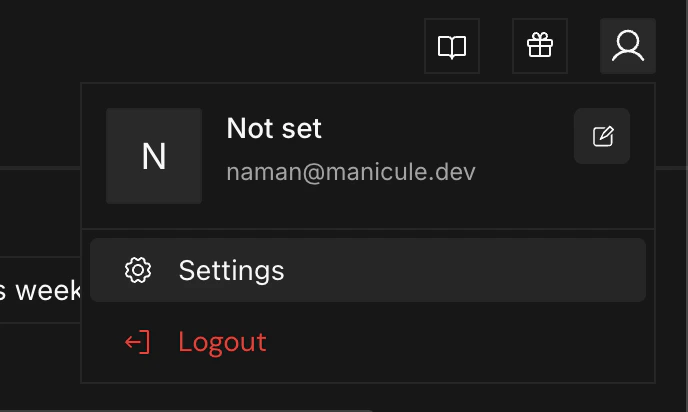
Click your profile icon in the upper-right corner of the page and select **Settings**, then go to **Review Settings**. Under the **Fix with your Agent** section, you'll see a prompt to link your profile and to install the bridge app. The bridge is a small CLI that sits on your machine and routes fix requests from GitHub to your local agent.
 ```bash theme={}
npm install -g greptile
```
Once installed, the dashboard shows a green checkmark with **Greptile bridge app connected**.
```bash theme={}
npm install -g greptile
```
Once installed, the dashboard shows a green checkmark with **Greptile bridge app connected**.
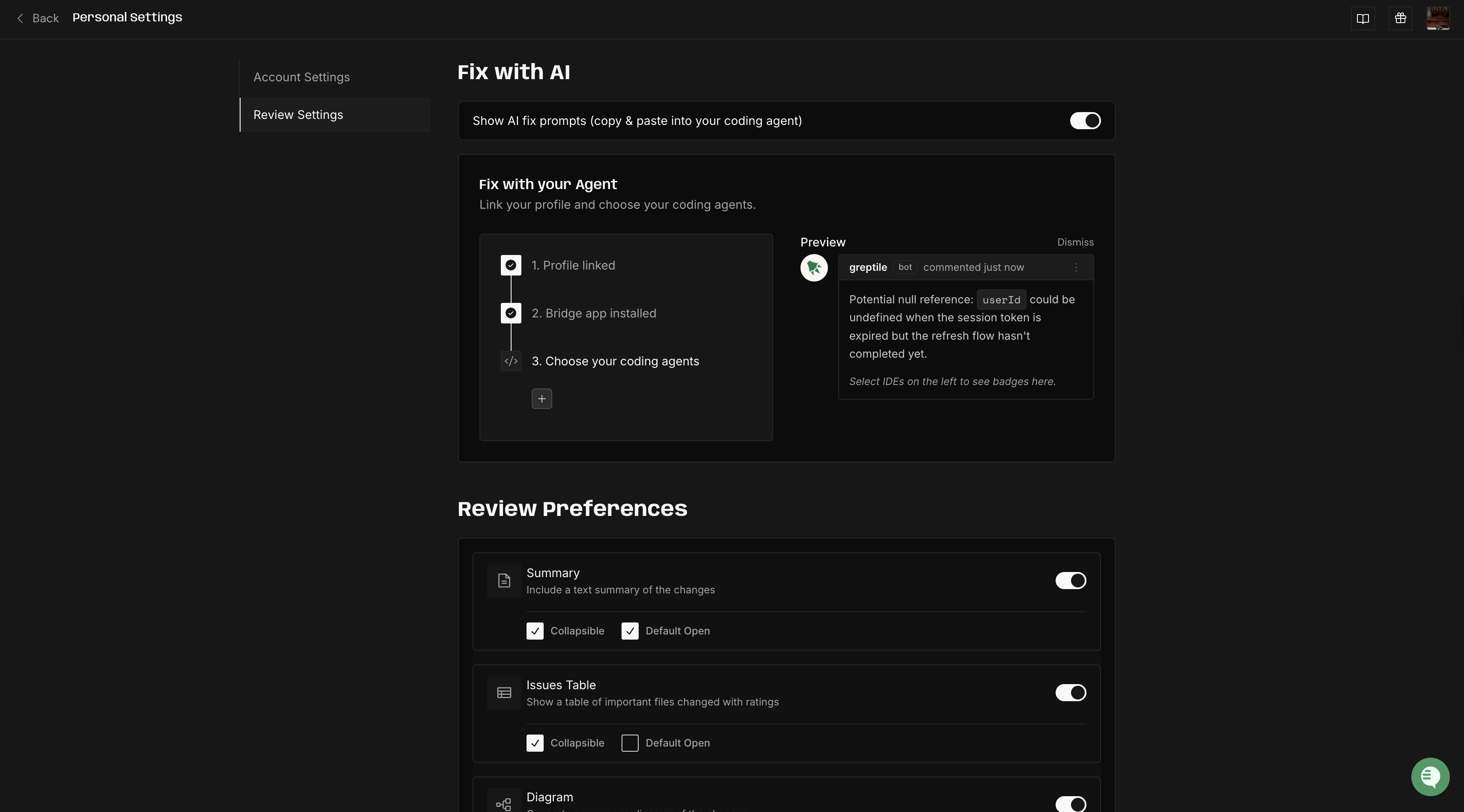 In the same section, click the **Choose your coding agents** dropdown and select the agents you want to use. You can pick from **Claude Code**, **Codex**, **Conductor**, **Cursor**, and **Devin**.
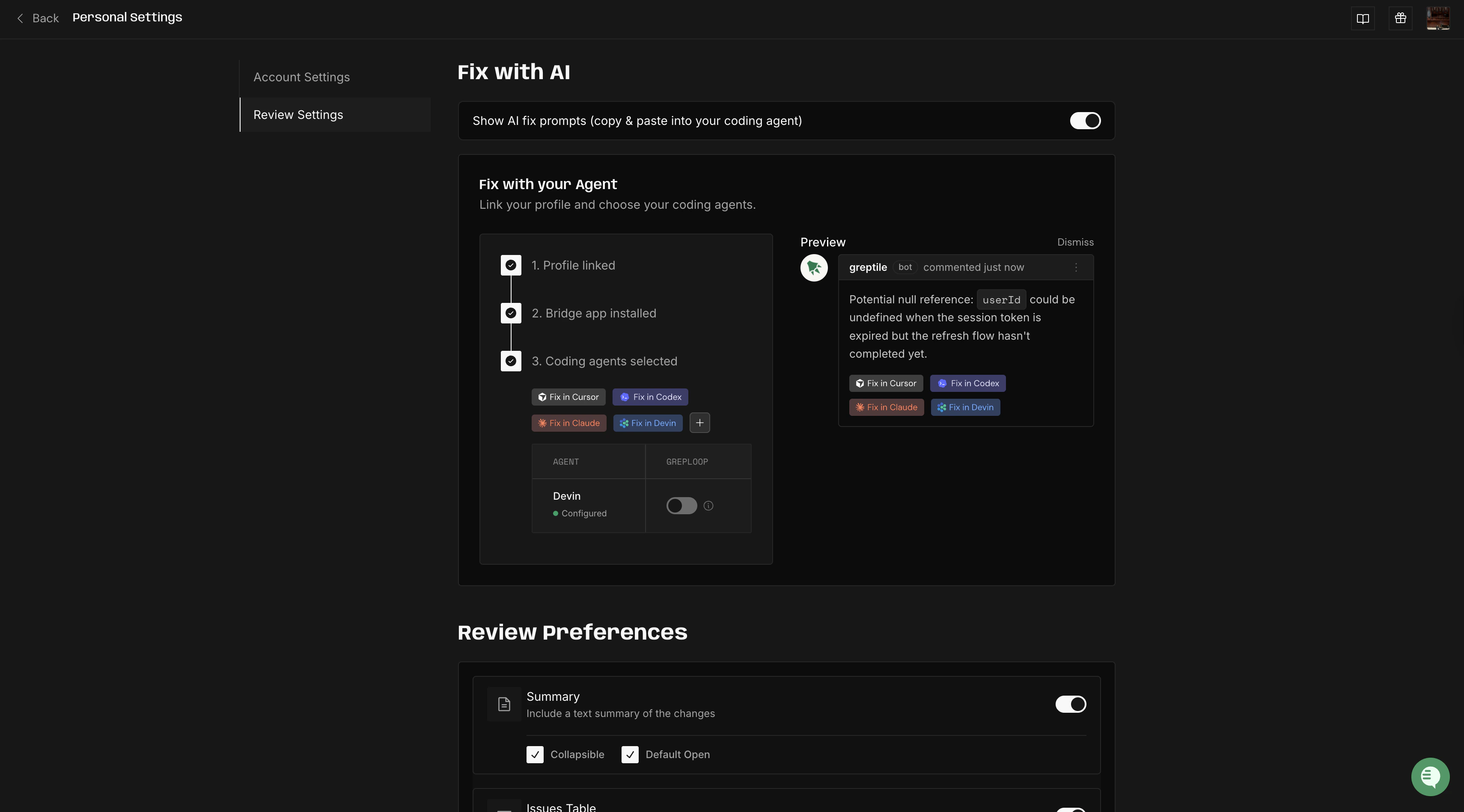
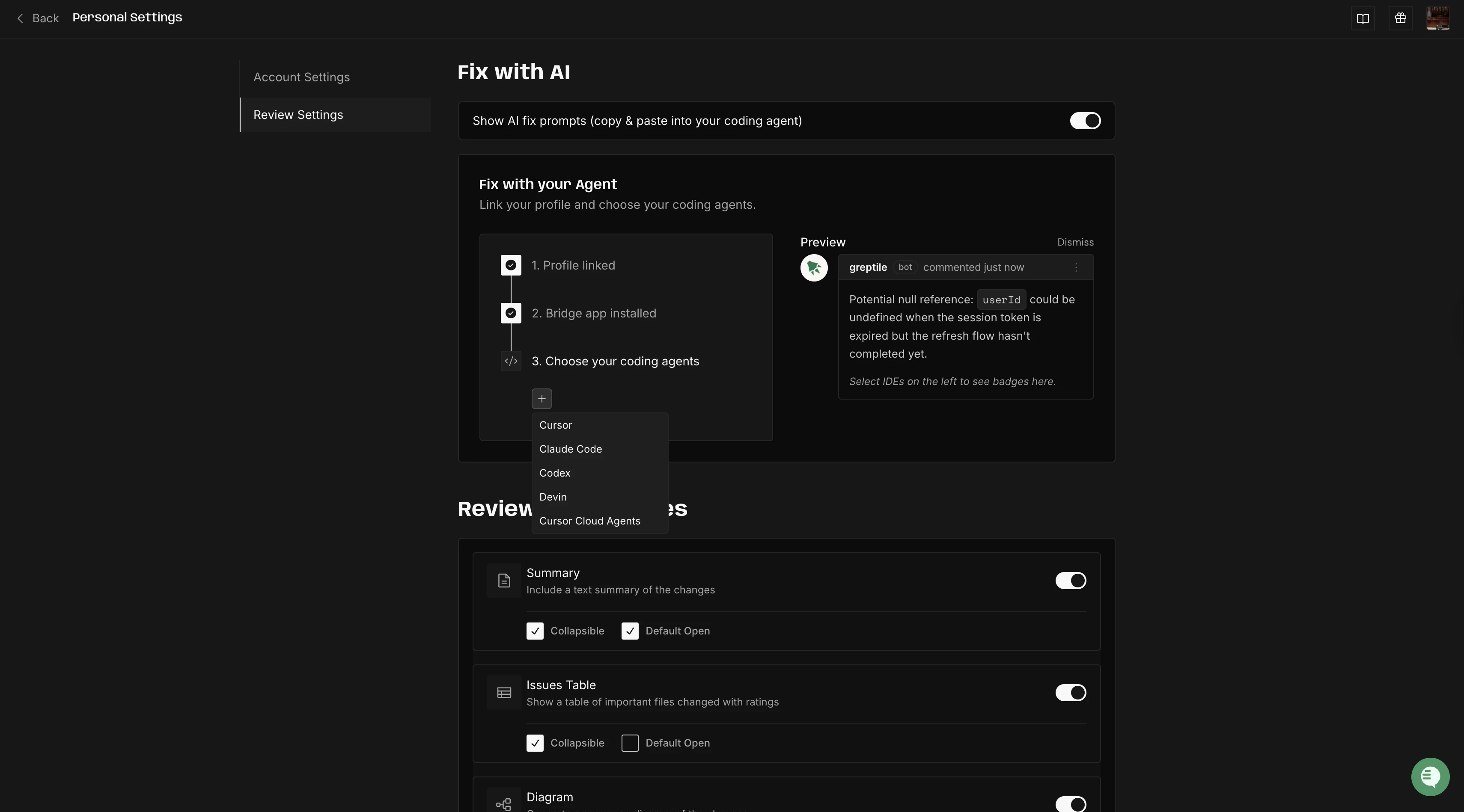 The button label on PR comments updates to reflect your choice. The preview on the right shows what the badge will look like on your review comments.
 ## Using Fix with your Agent
Once setup is done, the flow looks like this:
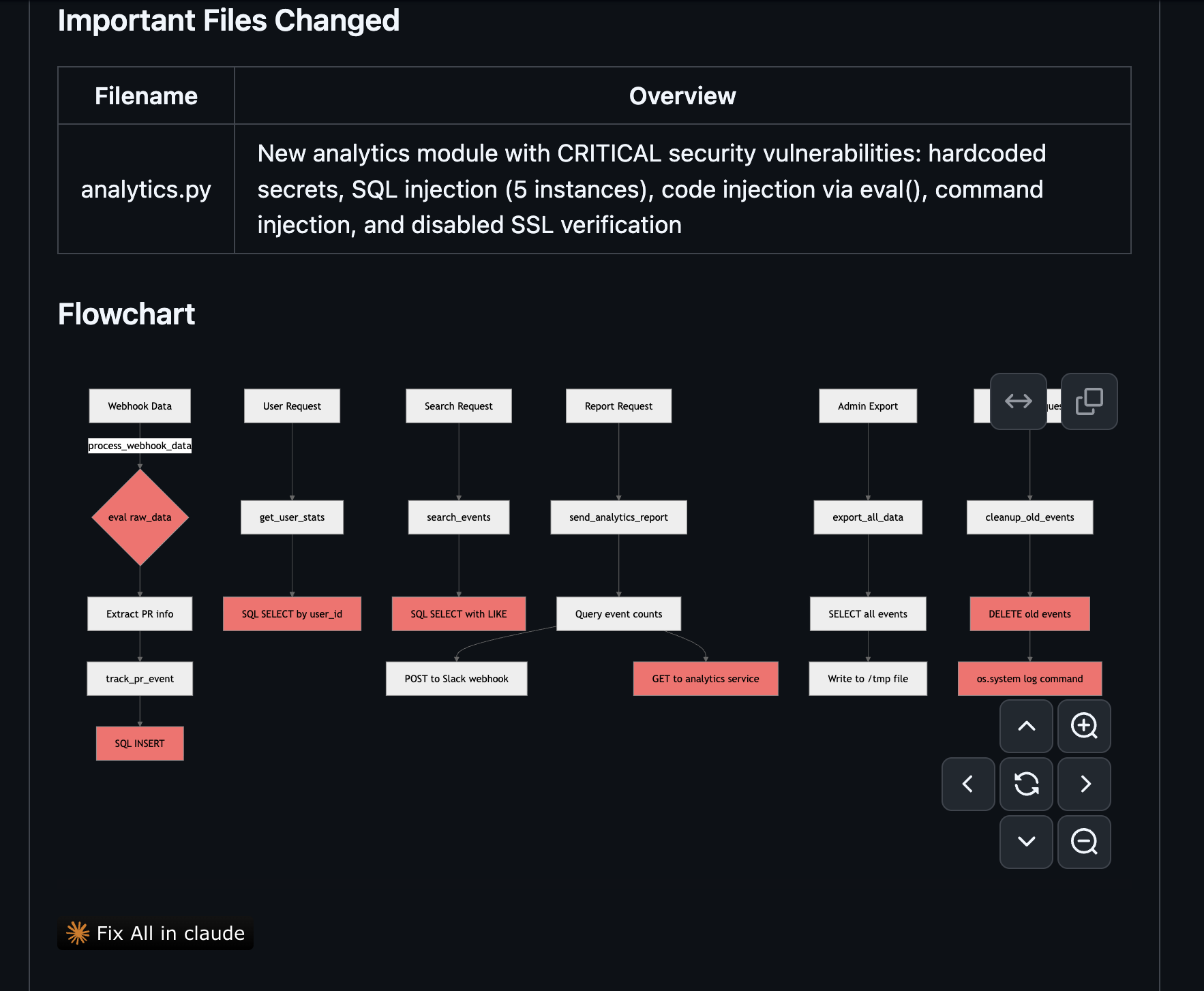
When you open or update a PR, Greptile posts its review. Each inline comment gets a **Fix with your Agent** button, and the review summary has a **Fix All** button at the bottom that sends every issue at once.
## Using Fix with your Agent
Once setup is done, the flow looks like this:
When you open or update a PR, Greptile posts its review. Each inline comment gets a **Fix with your Agent** button, and the review summary has a **Fix All** button at the bottom that sends every issue at once.
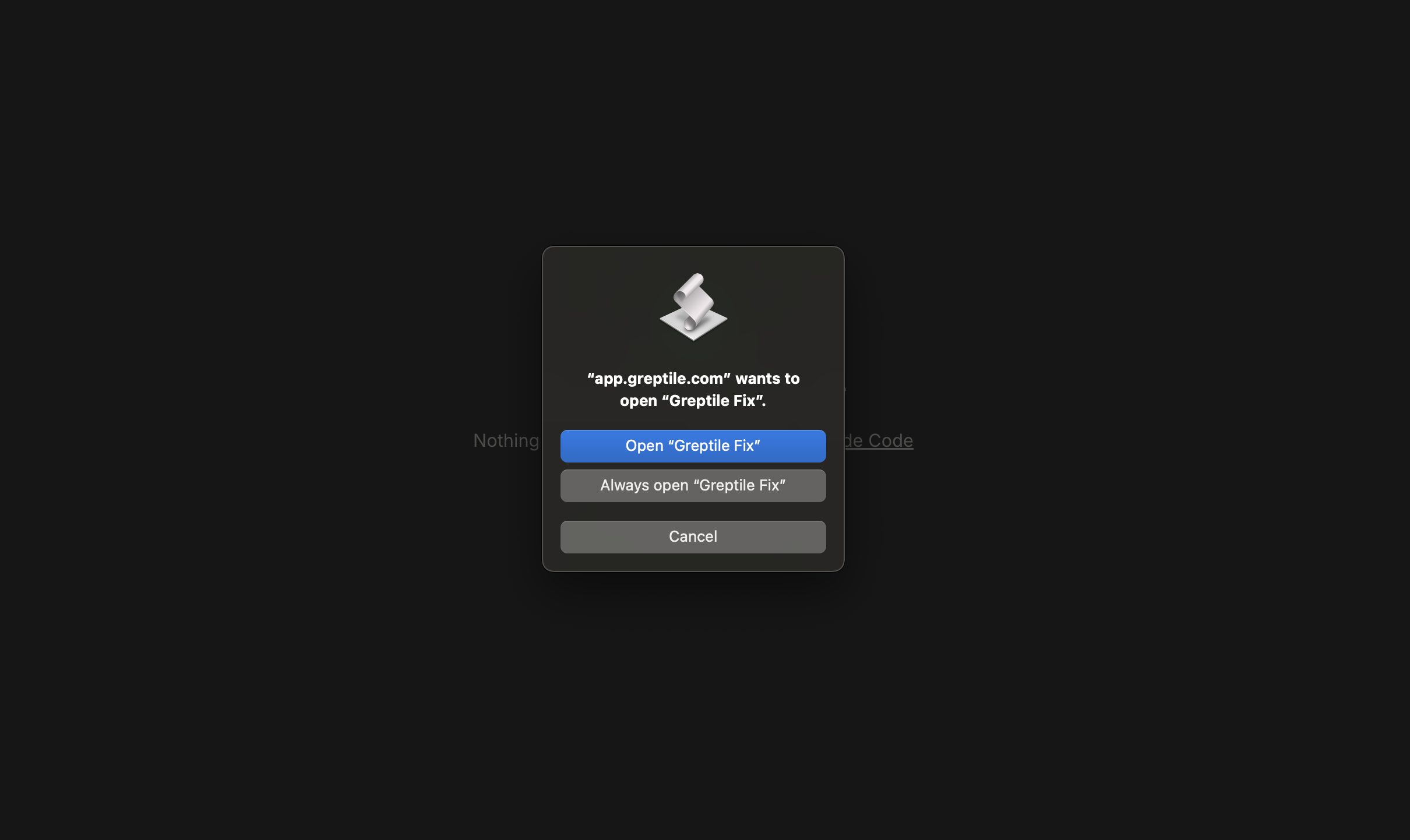
 Your browser asks permission to open **Greptile Fix**. Click **Open "Greptile Fix"** to continue. You can select **Always open** to skip this prompt going forward.
 Greptile Fix asks you to select the local directory where your repo lives. This tells it where to open your agent.
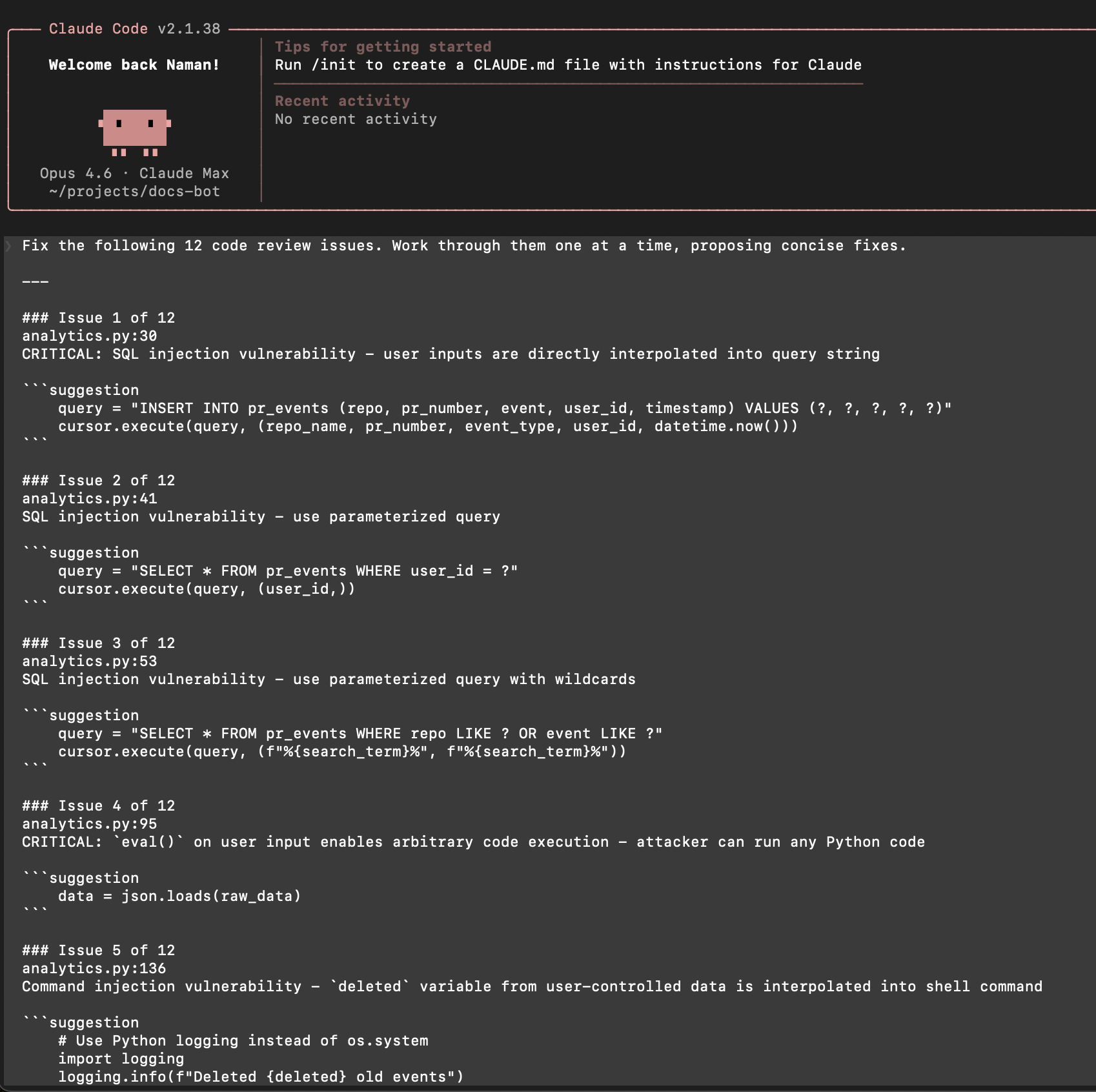
Your coding agent fires up with a detailed prompt that includes every flagged issue: file paths, line numbers, the review comment, and suggested code changes. The agent works through them one at a time.
Greptile Fix asks you to select the local directory where your repo lives. This tells it where to open your agent.
Your coding agent fires up with a detailed prompt that includes every flagged issue: file paths, line numbers, the review comment, and suggested code changes. The agent works through them one at a time.
 Review the changes your agent proposes, then commit when you're happy with them.
When you push a commit that touches the flagged files, Greptile marks the corresponding review comments as addressed.
## Troubleshooting
Make sure your GitHub account is linked in **Settings → User → Linked Accounts**, you've selected at least one coding agent, and the Greptile Bridge is installed (`npm list -g greptile`).
This usually means the bridge isn't installed or local network access isn't enabled. Reinstall with `npm install -g greptile` and check that local network permissions are granted in your dashboard settings.
The agent uses the review comment and suggested code as guidance, but it may interpret things differently depending on context. Always review the diff before committing.
Review the changes your agent proposes, then commit when you're happy with them.
When you push a commit that touches the flagged files, Greptile marks the corresponding review comments as addressed.
## Troubleshooting
Make sure your GitHub account is linked in **Settings → User → Linked Accounts**, you've selected at least one coding agent, and the Greptile Bridge is installed (`npm list -g greptile`).
This usually means the bridge isn't installed or local network access isn't enabled. Reinstall with `npm install -g greptile` and check that local network permissions are granted in your dashboard settings.
The agent uses the review comment and suggested code as guidance, but it may interpret things differently depending on context. Always review the diff before committing.