> ## Documentation Index
> Fetch the complete documentation index at: https://www.greptile.com/docs/llms.txt
> Use this file to discover all available pages before exploring further.
# Organizations & Teams
> Manage your Greptile organization: navigate the org/team hierarchy, invite members, assign roles, sync settings, and configure team-level access.
Greptile has **organizations** (your workspace) and **teams** (each GitHub org or GitLab group you connect).
## One org vs. multiple
**One connected org or group** — most workspaces look like this. The top-left breadcrumb shows your workspace name only. Use **Organization Settings** for members, billing, and providers. There is no **Team Settings** tab.
**Two or more connected orgs or groups** — the breadcrumb shows `Workspace / team-name`. Pick a team from the dropdown to switch context. **Team Settings** appears for team-specific member access.
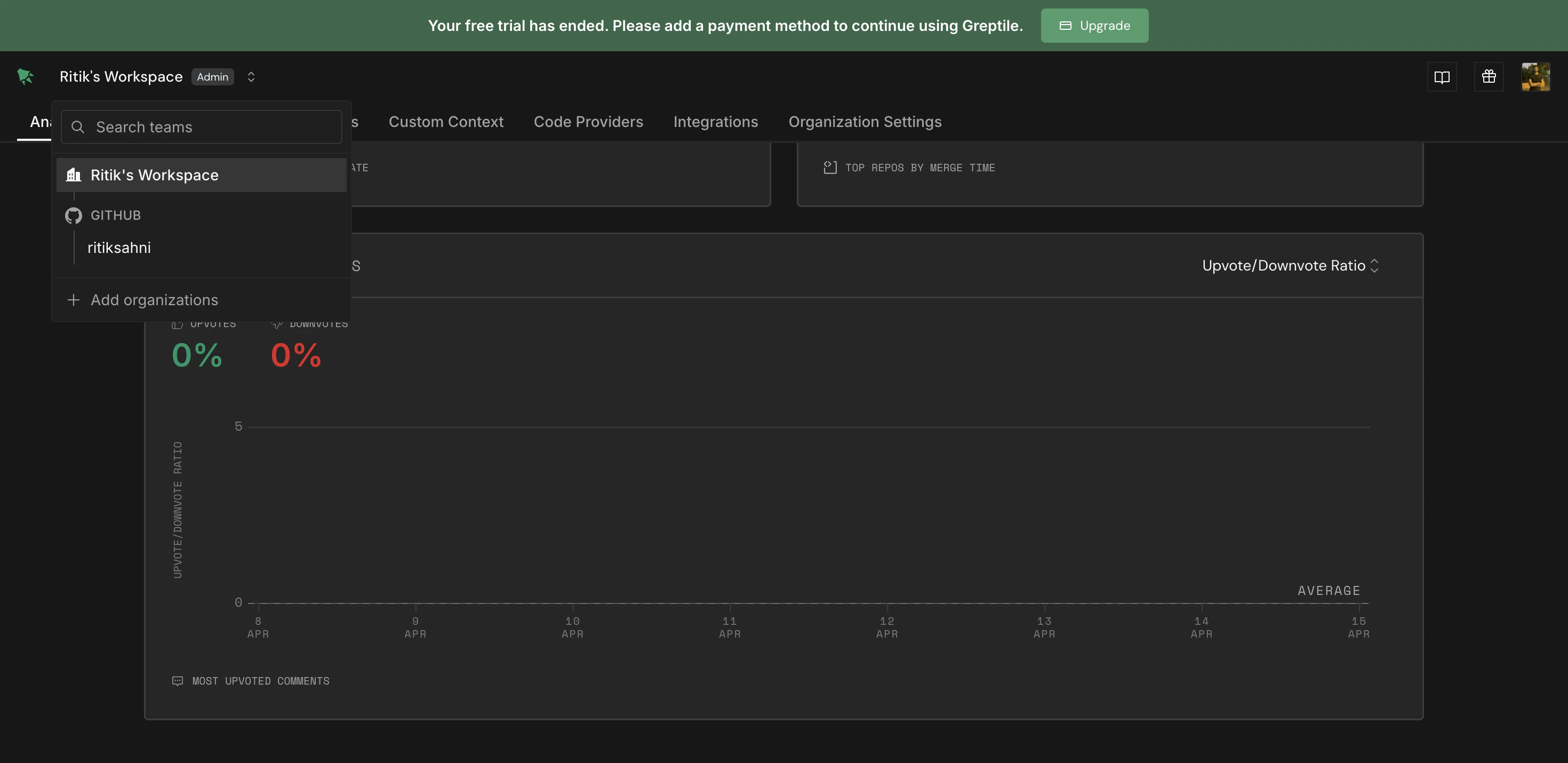 Breadcrumb with multiple teams connected
Steps below that mention **Team Settings** only apply when you have multiple teams connected. Otherwise, use **Organization Settings**.
## Roles
### Organization roles
Set under **Organization Settings → People**.
* **Admin** — Billing, members, code providers, integrations, and organization-wide review settings.
* **Member** — Day-to-day use: analytics, repos, pull requests, and custom context. Cannot change billing, providers, or org-wide settings.
At least one admin must remain. The last admin cannot be removed until another is promoted.
### Team roles
Only relevant with multiple teams connected. Set under **Team Settings → People**.
* **Admin** — Manage members for that team. Cannot edit **Code Review Settings** (organization admins only).
* **Member** — View team repos, pull requests, and custom context; enable or disable repos for that team.
Organization admins always have full access to every team.
## Adding members
Open **Organization Settings → People**.
Click **Send Invite** or **Invite Link**.
Breadcrumb with multiple teams connected
Steps below that mention **Team Settings** only apply when you have multiple teams connected. Otherwise, use **Organization Settings**.
## Roles
### Organization roles
Set under **Organization Settings → People**.
* **Admin** — Billing, members, code providers, integrations, and organization-wide review settings.
* **Member** — Day-to-day use: analytics, repos, pull requests, and custom context. Cannot change billing, providers, or org-wide settings.
At least one admin must remain. The last admin cannot be removed until another is promoted.
### Team roles
Only relevant with multiple teams connected. Set under **Team Settings → People**.
* **Admin** — Manage members for that team. Cannot edit **Code Review Settings** (organization admins only).
* **Member** — View team repos, pull requests, and custom context; enable or disable repos for that team.
Organization admins always have full access to every team.
## Adding members
Open **Organization Settings → People**.
Click **Send Invite** or **Invite Link**.
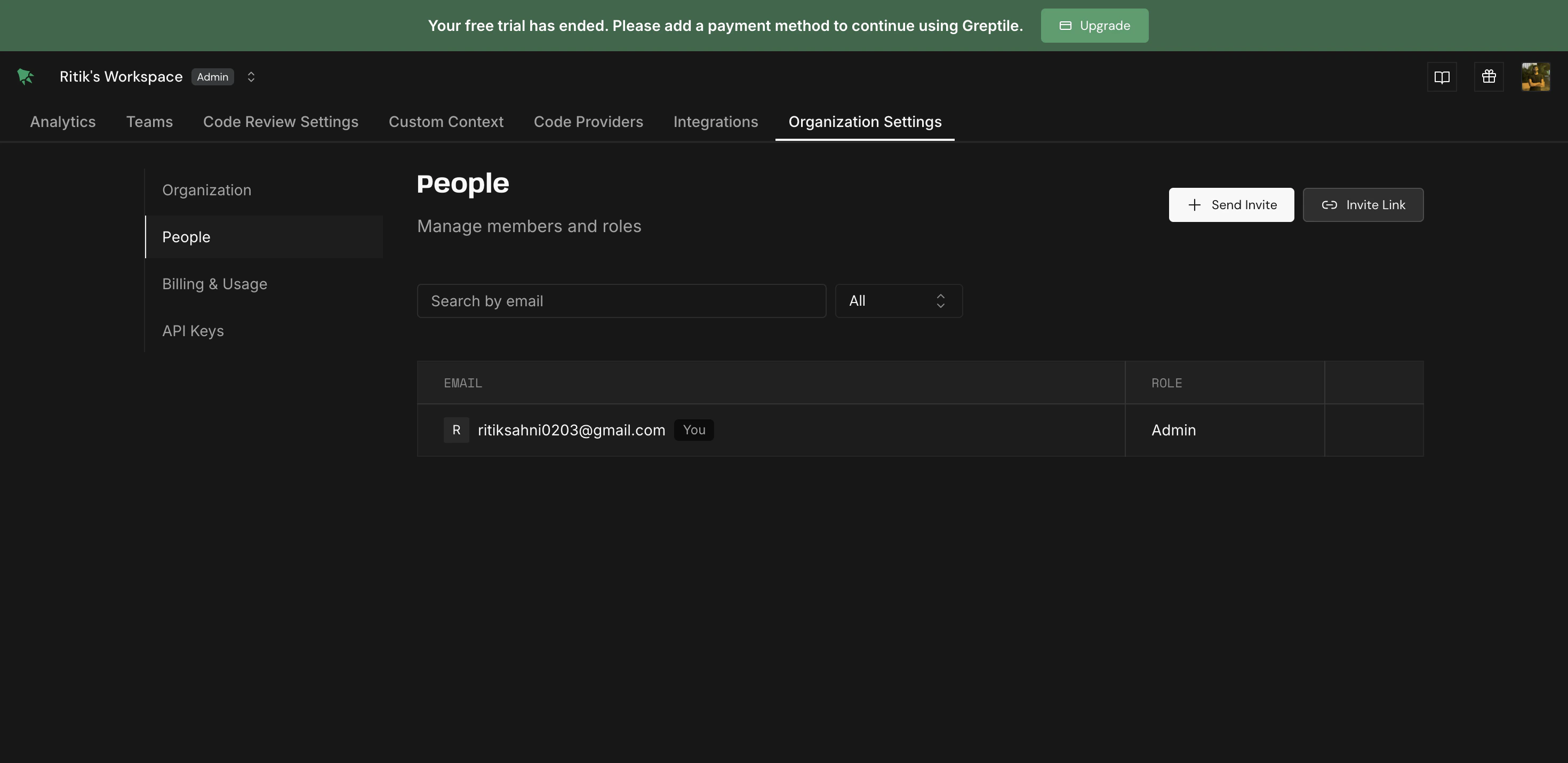 Manage organization members
Choose **Admin** or **Member**.
To limit someone to a specific GitHub org or GitLab group, select that team in the breadcrumb, then open **Team Settings → People**.
Manage organization members
Choose **Admin** or **Member**.
To limit someone to a specific GitHub org or GitLab group, select that team in the breadcrumb, then open **Team Settings → People**.
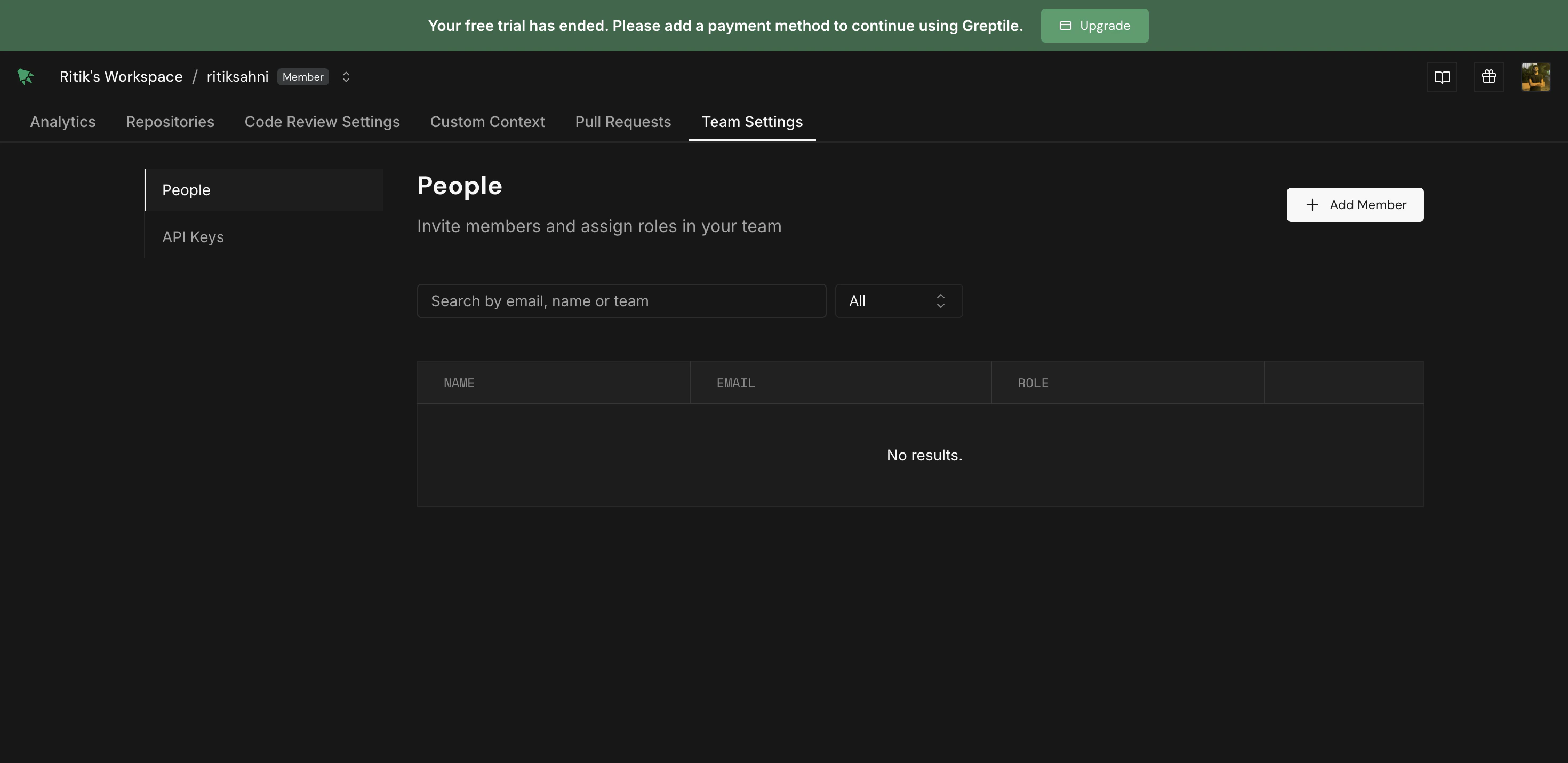 Team member access (multiple teams only)
## Managing repositories
Open **Repositories** and click **Manage Repos** to enable or disable repos.
Team member access (multiple teams only)
## Managing repositories
Open **Repositories** and click **Manage Repos** to enable or disable repos.
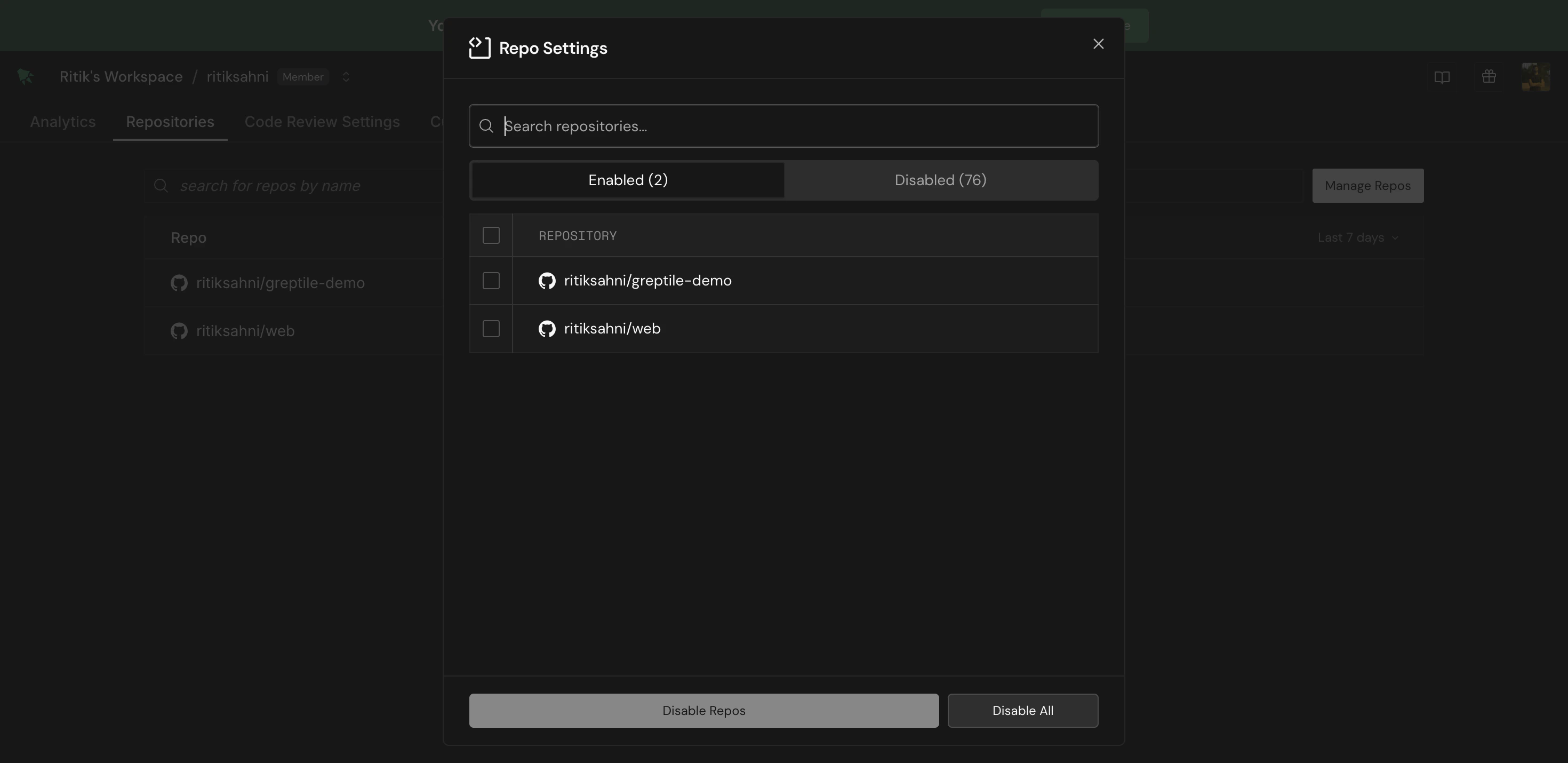 Enable or disable repositories
* **Enabled** — select repos and click **Disable Repos** or **Disable All**
* **Disabled** — select repos and click **Enable Repos** or **Enable All**
Organization admins can manage repos across the whole workspace. With multiple teams, team members can also manage repos for their team.
### Auto-enable new repositories
1. Go to **Code Review Settings**
2. Scroll to **Auto-enable New Repos**
3. Toggle on
Only organization admins can change this.
Enable or disable repositories
* **Enabled** — select repos and click **Disable Repos** or **Disable All**
* **Disabled** — select repos and click **Enable Repos** or **Enable All**
Organization admins can manage repos across the whole workspace. With multiple teams, team members can also manage repos for their team.
### Auto-enable new repositories
1. Go to **Code Review Settings**
2. Scroll to **Auto-enable New Repos**
3. Toggle on
Only organization admins can change this.
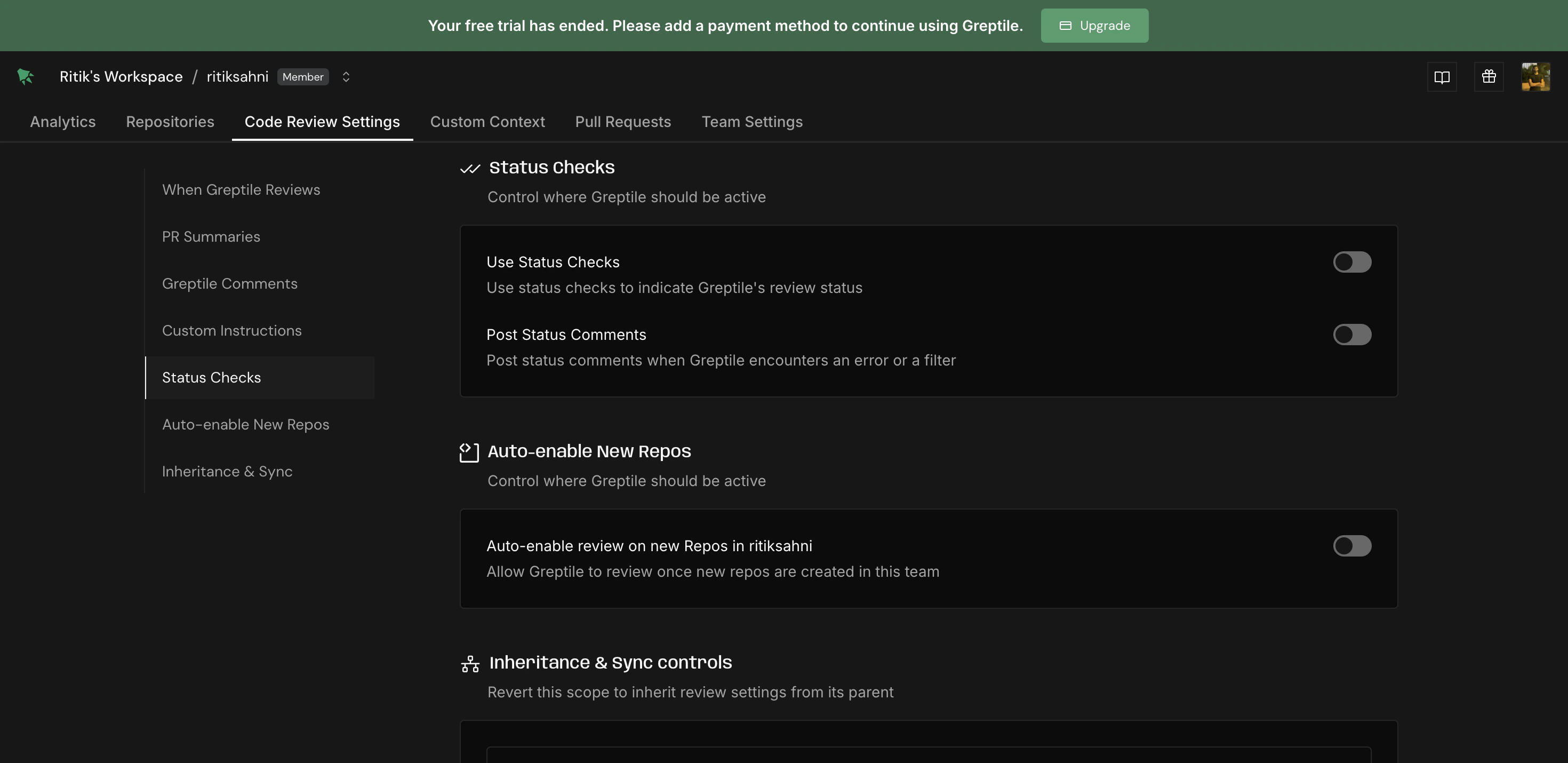 Auto-enable new repos and sync settings
## Syncing settings across teams
With multiple teams, each team can inherit review settings from the organization. On a team's **Code Review Settings** page, use **Inheritance & Sync**:
* **Sync from Parent** — match organization defaults
* **Sync Now** — sync immediately (disabled when already in sync)
Organization-level custom context rules also appear on team **Custom Context** pages as inherited.
## Onboarding for invited members
New members land in the org dashboard and are guided through **Personal Settings → Review Settings**:
1. Link GitHub or GitLab profile
2. Install the bridge app
3. Choose coding agents for Fix with your Agent
Members can also set personal preferences for summaries, diagrams, collapsible sections, and comments outside the diff.
**Members** do not see **Code Providers** or **Integrations** — admins only.
## Code providers
Admins connect GitHub or GitLab under **Code Providers**. Click **Add Provider** to connect more orgs or groups.
Auto-enable new repos and sync settings
## Syncing settings across teams
With multiple teams, each team can inherit review settings from the organization. On a team's **Code Review Settings** page, use **Inheritance & Sync**:
* **Sync from Parent** — match organization defaults
* **Sync Now** — sync immediately (disabled when already in sync)
Organization-level custom context rules also appear on team **Custom Context** pages as inherited.
## Onboarding for invited members
New members land in the org dashboard and are guided through **Personal Settings → Review Settings**:
1. Link GitHub or GitLab profile
2. Install the bridge app
3. Choose coding agents for Fix with your Agent
Members can also set personal preferences for summaries, diagrams, collapsible sections, and comments outside the diff.
**Members** do not see **Code Providers** or **Integrations** — admins only.
## Code providers
Admins connect GitHub or GitLab under **Code Providers**. Click **Add Provider** to connect more orgs or groups.
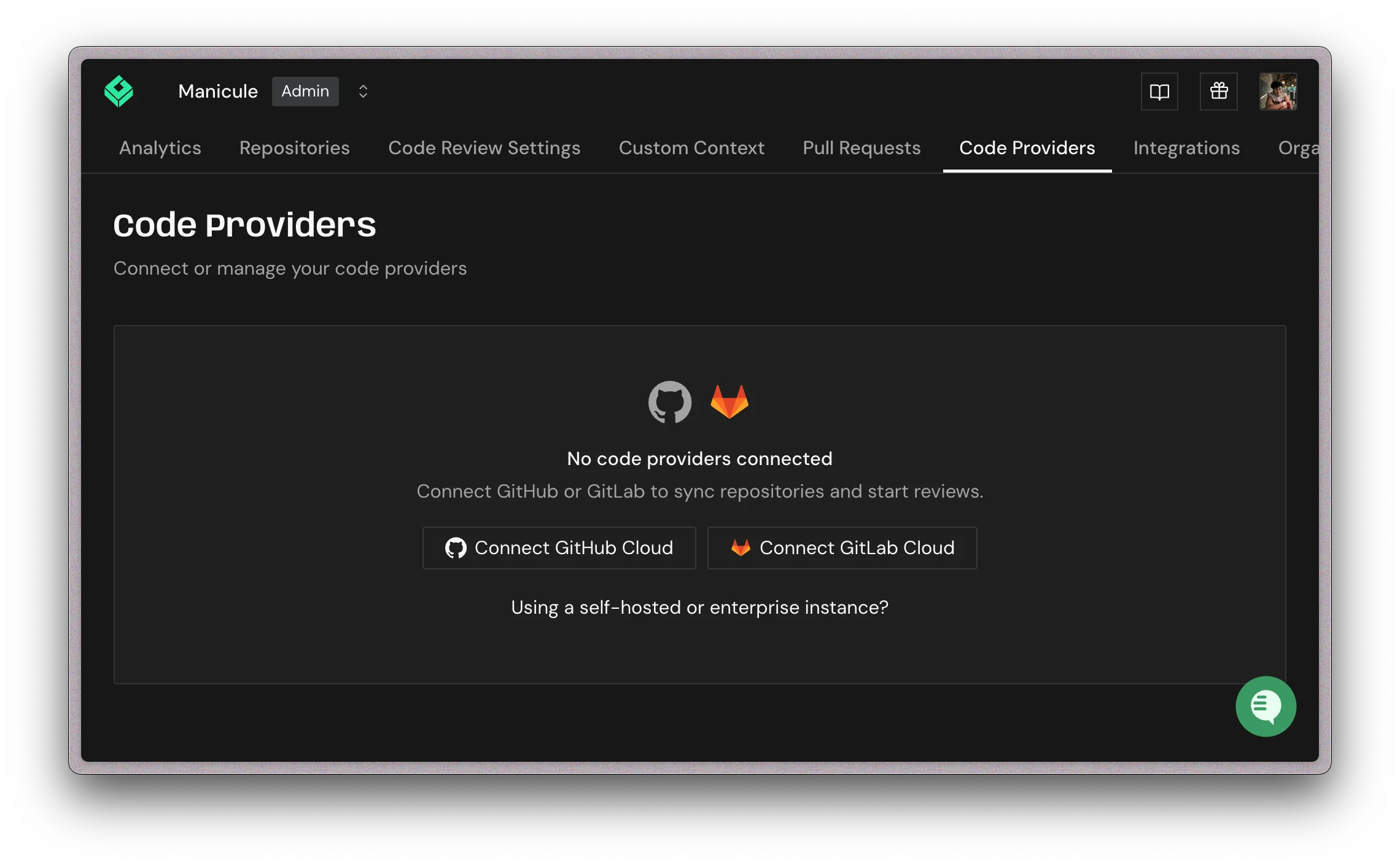 Connected code providers
If a GitHub organization does not appear when you add a provider, see [GitHub organization not listed](/troubleshooting/common-issues#github-organization-not-listed).
## What's next?
* [Configure review settings](/code-review/controlling-nitpickiness)
* [Add custom standards](/code-review/custom-standards)
* [View analytics](/analytics)
Connected code providers
If a GitHub organization does not appear when you add a provider, see [GitHub organization not listed](/troubleshooting/common-issues#github-organization-not-listed).
## What's next?
* [Configure review settings](/code-review/controlling-nitpickiness)
* [Add custom standards](/code-review/custom-standards)
* [View analytics](/analytics)